Recording live streams with Streamlink
Key takeaways
- Streamlink is a free, open-source command-line utility that extracts a live video stream from a web page and sends it to a video player or to a file; it is licensed under the BSD 2-Clause licence.
- The basic recording command is streamlink -o output.ts URL best, where best is the highest available quality.
- The --record option saves the stream to a file while you keep watching it in your player.
- --hls-live-restart starts an HLS live stream from the earliest segment the server still offers, and --retry-streams keeps waiting for a channel that is not live yet.
- Streamlink is designed for live content; for finished videos and replays, yt-dlp is usually the better tool.
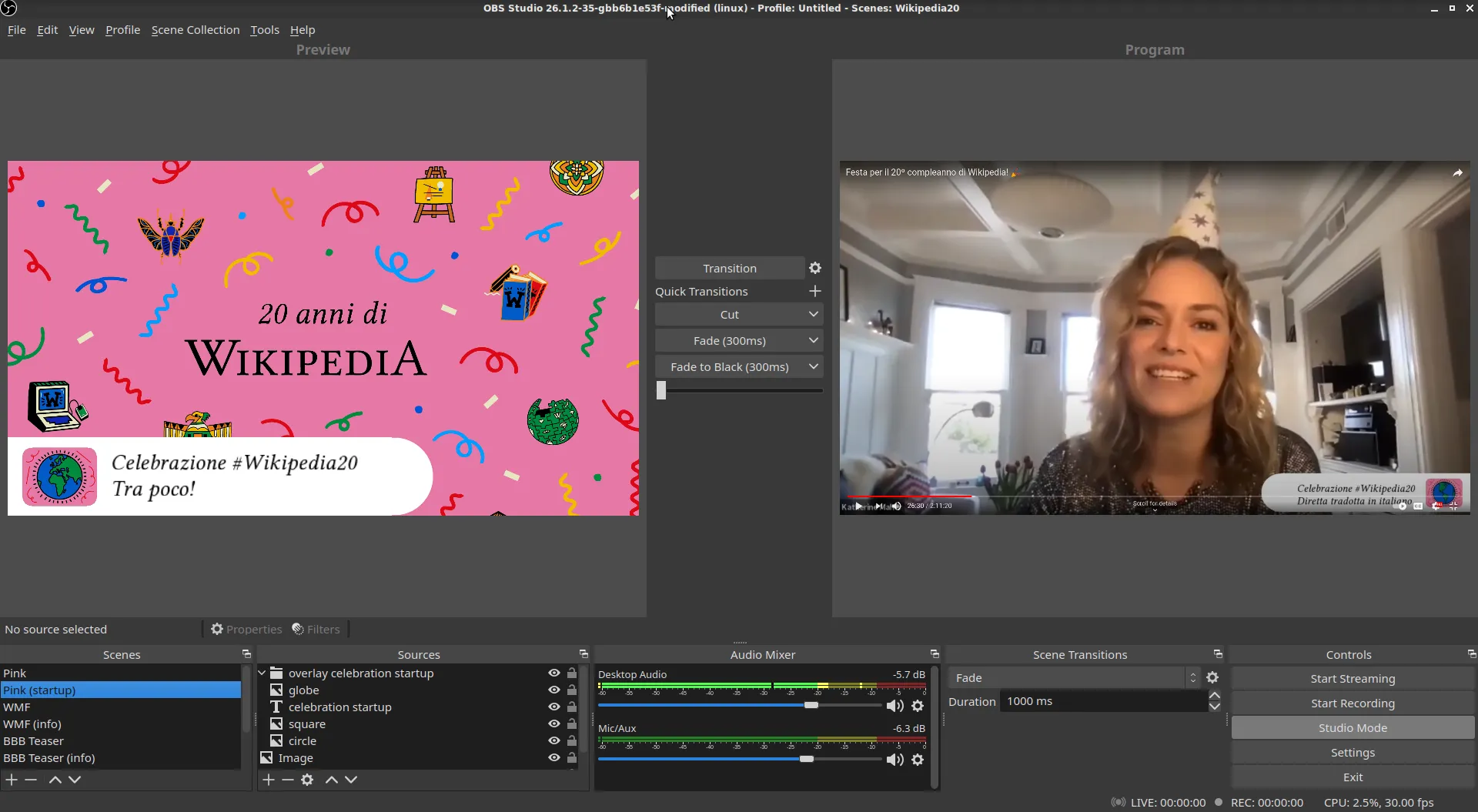

To record a live stream with Streamlink, run streamlink -o recording.ts URL best. Streamlink locates the live video behind the web page, picks the quality you asked for and writes the stream to disk as it arrives. It is the most reliable open-source way to capture a broadcast while it happens, such as your own Twitch or YouTube live, a conference keynote or a public-sector live stream, without screen recording.
Recording your own streams or openly licensed broadcasts is the use case this guide assumes. Platform terms and copyright still apply to everything else: see is downloading videos legal?.
What is Streamlink?
Streamlink is a command-line utility, originally forked from the Livestreamer project, that extracts streams from websites and hands them to a player such as VLC or mpv, or writes them to a file. It is written in Python, released under the BSD 2-Clause licence and supports many sites through plugins (streamlink --plugins lists those installed). Under the hood, most live sites use HLS (m3u8), and some use MPEG-DASH.
How do I install Streamlink?
The official installation page documents these methods:
| Platform | Method |
|---|---|
| Windows | Installer from the streamlink/windows-builds releases, or winget install streamlink, Chocolatey or Scoop |
| macOS | brew install streamlink |
| Linux | AppImage from streamlink/streamlink-appimage, your distribution’s package, or pip install -U streamlink in a virtual environment |
| Any OS with Python | pip install -U streamlink |
The Windows installer and the AppImage bundle FFmpeg, which Streamlink needs to mux separate audio and video streams. On other installs, add FFmpeg yourself (see our FFmpeg guide).
How do I list the available qualities?
Run Streamlink with only the URL:
streamlink "https://example.org/live/my-channel"It prints the available streams, for example audio_only, 360p, 720p60, 1080p60 (best), worst. best and worst are aliases for the highest and lowest quality.
How do I record to a file?
streamlink -o "recording.ts" "https://example.org/live/my-channel" best-o (or --output) writes the stream to a file instead of opening a player. MPEG-TS (.ts) is the safest extension for live captures because a TS file stays playable even if the recording stops abruptly. Remux it to MP4 afterwards with FFmpeg if needed.
Output names can include metadata variables, which keeps a recording folder tidy:
streamlink -o "recordings/{author}/{id}-{time:%Y%m%d%H%M%S}.ts" URL best{author}, {category}, {id}, {title} and {time} are filled in from the stream metadata when the plugin provides them.
How do I watch and record at the same time?
streamlink --record "recording.ts" URL best--record (or -r) writes the file while the stream also plays in your configured player. Useful when you moderate your own live and want a local copy as a safety net.
How do I record from the beginning of a live stream?
streamlink --hls-live-restart -o "full.ts" URL best--hls-live-restart starts from the earliest segment still listed in the HLS playlist. How far back that goes depends on the site: some keep the whole broadcast, others only a few minutes. Alternatively, --hls-start-offset 00:30:00 rewinds a given duration from the live edge, where supported.
How do I wait for a stream that has not started?
streamlink --retry-streams 60 --retry-max 120 -o "event.ts" URL bestStreamlink checks the channel every 60 seconds, up to 120 times (two hours), and starts recording as soon as the stream goes live. With --retry-max 0, it retries indefinitely.
How do I make recordings more robust?
| Problem | Option | Effect |
|---|---|---|
| Segments download too slowly | --stream-segment-threads 3 |
Downloads up to 3 segments in parallel (1 to 10) |
| Stream drops after opening | --retry-open 3 |
Tries to open the stream 3 times |
| Want a fixed-length capture | --stream-segmented-duration 01:00:00 |
Stops after one hour of content |
| Overwrite without prompt | --force |
Overwrites an existing output file |
| Filenames rejected on Windows | --fs-safe-rules Windows |
Applies Windows filename rules |
The option --hls-duration still appears in older tutorials but is deprecated in favour of --stream-segmented-duration.
How do I automate recordings?
Because Streamlink is a command-line tool, it fits in a scheduled task (Windows Task Scheduler) or a cron job or systemd timer (Linux). A typical pattern for archiving your own livestreams is a script that launches Streamlink with --retry-streams shortly before your usual start time and writes to a dated file. Options can also be stored in Streamlink’s configuration file so the command line stays short; the CLI documentation lists the file locations for each operating system.
How do I keep my settings in a config file?
Streamlink reads a plain-text configuration file, one option per line, written without the leading dashes:
| OS | Default location |
|---|---|
| Windows | %APPDATA%\streamlink\config |
| macOS | ~/Library/Application Support/streamlink/config |
| Linux and BSD | ~/.config/streamlink/config (or under $XDG_CONFIG_HOME) |
A recording-oriented example:
# streamlink config: archive mode
default-stream=best
stream-segment-threads=3
retry-open=3
fs-safe-rules=Windows
logfile=streamlink.log
Note that quotes are kept as part of the value, so do not wrap paths in quotes inside this file. Settings for one site only go in a file named like the main one plus the plugin name, for example config.twitch in the same folder; they apply only when a URL of that plugin is used. --config FILE loads another file, which is handy to keep separate profiles for watching and for archiving.
Common errors and how to fix them
| Message or symptom | Meaning | What to do |
|---|---|---|
No playable streams found on this URL |
The channel is offline, or the URL is not a live page | Check the URL, then add --retry-streams 60 to wait |
No plugin can handle URL |
The site has no Streamlink plugin | Look for the site in the plugins list, or use yt-dlp |
| Error mentioning FFmpeg | Separate audio and video need muxing but FFmpeg was not found | Install FFmpeg or point to it with --ffmpeg-ffmpeg PATH |
| Recording stops with a timeout | No data arrived within the stream timeout | Raise --stream-timeout, check your connection |
| Plugin worked yesterday, fails today | The site changed its player | Update Streamlink; plugins are fixed in new releases |
When reporting a problem to the project, run the same command with --loglevel debug and keep the log: it shows the Streamlink and Python versions, the plugin used and the exact request that failed. Remove any access token or cookie from the log before sharing it.
How do I turn the recording into an MP4?
TS files play in VLC and mpv, but editors and phones prefer MP4. Since the content is already compressed, a remux is enough:
ffmpeg -i recording.ts -c copy recording.mp4This takes seconds and does not touch quality. If the stream used codecs that MP4 does not accept, use MKV instead; our explainer on MP4, MKV and WebM containers lists which codecs fit where.
When should I use another tool?
- For replays and VODs once the broadcast has ended, yt-dlp handles metadata, subtitles and playlists better.
- To just watch a network stream without the site’s player, VLC can open many direct stream URLs.
- For DRM-protected live TV, neither tool can or should be used: see why DRM video cannot be downloaded.
The full list of open-source options is in our comparison of open-source video downloaders.
Open-source tools in this guide
| Tool | Licence |
|---|---|
| Streamlink | BSD 2-Clause |
| FFmpeg | LGPL 2.1+ (some builds GPL) |
Frequently asked questions
What is the difference between Streamlink and yt-dlp?
Streamlink specialises in live streams: it pipes them to a player or file with options for live edge, restarts and retries. yt-dlp is better for finished videos, playlists, subtitles and metadata. Many archivists use Streamlink while the broadcast runs and yt-dlp for the replay later.
Why does my recording start a few seconds behind the live edge?
For HLS, Streamlink starts a few segments back from the newest one to avoid buffering; the default is 3 segments, set by --hls-live-edge. Use --hls-live-restart to go back to the earliest available segment instead.
Do I need FFmpeg for Streamlink?
Not always. FFmpeg is required when Streamlink must combine separate video and audio streams, which is always the case for DASH and sometimes for HLS. The Windows installer and the Linux AppImage bundle FFmpeg.
Can Streamlink record a stream that has not started yet?
Yes. With --retry-streams followed by a delay in seconds, Streamlink keeps checking until the stream goes live, then starts recording. Add --retry-max to limit the number of attempts.
Is recording a live stream legal?
Recording your own broadcasts, or streams whose licence or owner allows it, is fine. Recording someone else's stream for redistribution generally is not, and platform terms may restrict recording. Check our page on whether downloading videos is legal.
Sources and open data
- Streamlink command-line usage · Streamlink project
- Streamlink installation · Streamlink project
- Streamlink plugins list · Streamlink project
- Streamlink source code and licence (BSD-2-Clause) · GitHub
- RFC 8216: HTTP Live Streaming · IETF
Related guides
- Archive your livestreams
Keep your own Twitch past broadcasts and YouTube lives before they expire: official download paths, retention windows, local recording and archiving.
- HLS / m3u8
What an .m3u8 playlist really is, how HLS splits video into segments, and how to save an HLS stream to one clean MP4 with yt-dlp or FFmpeg.
- yt-dlp guide
A practical yt-dlp guide: install and update it safely, pick formats with -f and -S, name files, grab subtitles and keep a download archive.
- FFmpeg for video files
FFmpeg commands for downloaded video: merge separate audio and video, remux TS to MP4 without quality loss, cut clips, join parts and convert only when needed.
- VLC: save a stream
Use VLC to save a network stream to disk: the Convert / Save dialog, the stream output command line, dump mode, and when VLC is the wrong tool for the job.