FFmpeg for downloaded video: merge, remux, cut and convert
Key takeaways
- FFmpeg is a free, open-source multimedia framework that can read, convert and combine almost every audio and video format; it is licensed under the LGPL 2.1 or later, with some optional parts under the GPL.
- The option -c copy remuxes streams into a new container without re-encoding, so the operation is fast and lossless.
- To merge a video-only file with an audio-only file, map both inputs and copy them: ffmpeg -i video.mp4 -i audio.m4a -map 0:v -map 1:a -c copy output.mp4.
- Re-encode only when you must change the codec, the resolution or the file size; each re-encode with a lossy codec loses some quality.
- ffprobe, shipped with FFmpeg, shows the codecs, durations and tracks of a file before you decide what to do with it.

FFmpeg is the Swiss army knife behind almost every video tool, including yt-dlp. When a download ends up as two files, a .ts that will not play on your TV or a two-hour recording you only need ten minutes of, FFmpeg fixes it with one command. This guide gives the commands that matter for downloaded video and, more importantly, tells you when to copy streams (instant and lossless) and when you really have to re-encode.
What is FFmpeg?
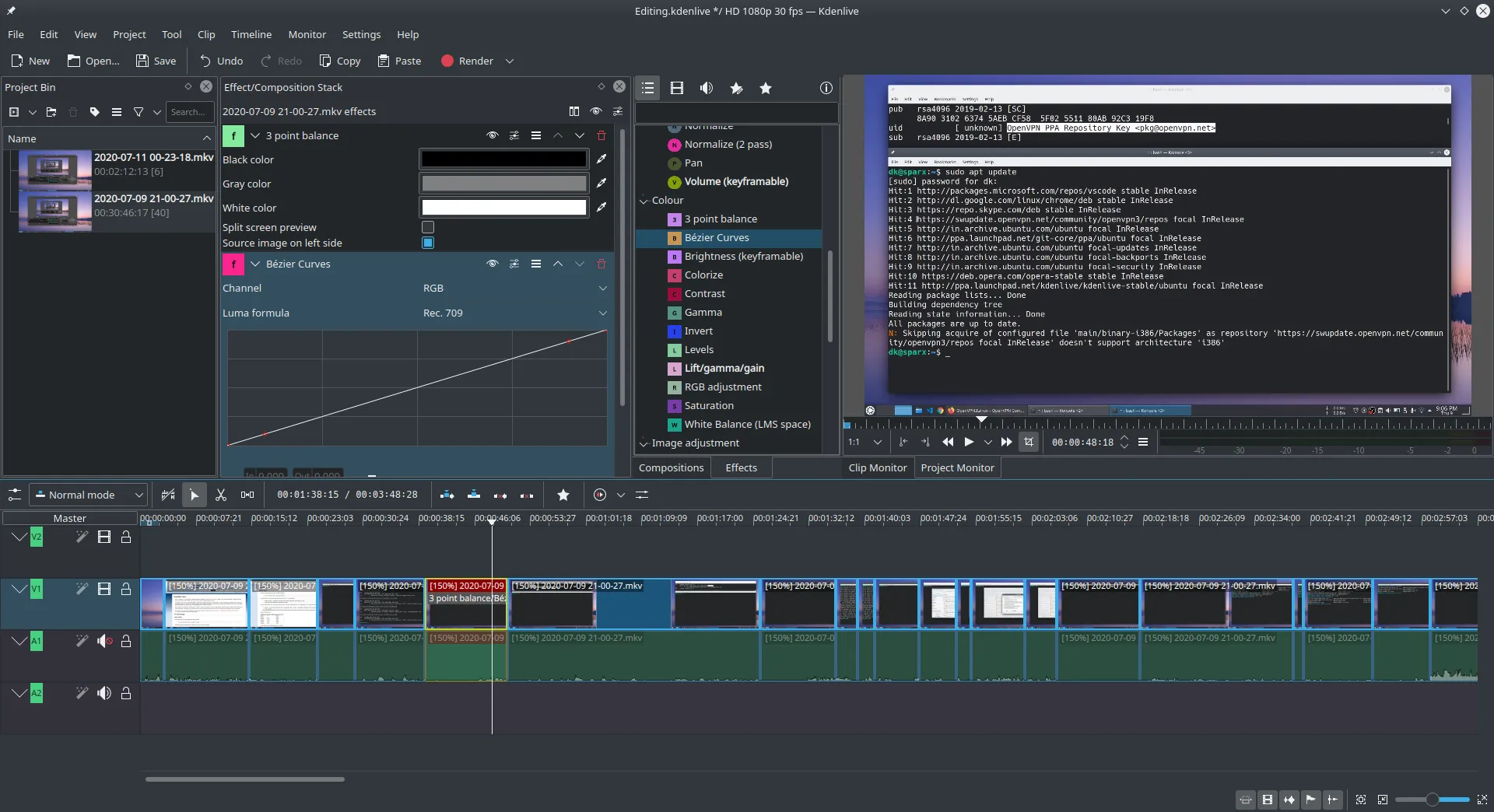
FFmpeg is a free, open-source project that provides the command-line programs ffmpeg (convert and process), ffprobe (inspect) and the libraries used by VLC, Kdenlive, OBS Studio, HandBrake and many others. The code is licensed under the LGPL 2.1 or later; builds that enable optional GPL components, such as the x264 encoder, are distributed under the GPL. The project ships source code; its download page links to ready-made builds for each operating system.
Install it with your package manager: brew install ffmpeg on macOS, sudo apt install ffmpeg on Debian or Ubuntu, or a build linked from the official page on Windows. Then check it works:
ffmpeg -versionCopy or re-encode: which one do you need?
This is the single most important decision, and most tutorials get it wrong by re-encoding by default.
| Task | Mode | Speed | Quality |
|---|---|---|---|
| Change container (TS to MP4, WebM to MKV) | -c copy |
Seconds | Identical |
| Merge separate audio and video | -c copy |
Seconds | Identical |
| Cut at keyframes | -c copy |
Seconds | Identical |
| Change codec (VP9 to H.264 for an old TV) | Re-encode | Minutes to hours | Slight loss |
| Shrink file size or resolution | Re-encode | Minutes to hours | Controlled loss |
A container (MP4, MKV, WebM, TS) is the box; the codec (H.264, VP9, AV1, AAC, Opus) is how the content inside is compressed. Copying keeps the content and swaps the box. Our explainer on MP4, MKV and WebM containers goes deeper.
How do I inspect a file with ffprobe?
Always look before you act:
ffprobe -v error -show_entries stream=index,codec_type,codec_name,width,height \
        -show_entries format=duration -of compact input.mkv
The output lists each stream (video, audio, subtitles) with its codec. If you see vp9 and opus, an MP4 will play on modern browsers but maybe not on an older smart TV; if you see h264 and aac, MP4 is safe everywhere.
How do I merge a video-only file with an audio-only file?
Adaptive streaming sites deliver picture and sound separately. yt-dlp merges them automatically when FFmpeg is installed, but if you have two files:
ffmpeg -i video.mp4 -i audio.m4a -map 0:v:0 -map 1:a:0 -c copy merged.mp4-ideclares each input; inputs are numbered from 0.-map 0:v:0takes the first video stream of input 0;-map 1:a:0the first audio stream of input 1.-c copycopies both without re-encoding.
If the audio is Opus or the video is VP9 or AV1 and your player is picky, write to MKV instead (merged.mkv), which accepts virtually any codec.
How do I convert TS to MP4 without losing quality?
Live recordings and HLS downloads often end up as MPEG-TS files. Remux them:
ffmpeg -i recording.ts -c copy -movflags +faststart recording.mp4-movflags +faststart moves the index to the start of the file so playback can begin before the whole file is read, which matters for files you will put on a website or a network share.
How do I cut a clip?
# Fast, lossless, starts on the nearest keyframe
ffmpeg -ss 00:12:30 -to 00:18:00 -i talk.mp4 -c copy clip.mp4

# Frame-accurate, re-encodes the clip only
ffmpeg -ss 00:12:30 -to 00:18:00 -i talk.mp4 -c:v libx264 -crf 18 -c:a aac clip.mp4
With stream copy, the clip can only start on a keyframe, which may be a second or two before the time you asked for. That is fine for archiving; for editing, use the second form.
How do I join several parts into one file?
When a recording was split into parts with identical codecs, the concat demuxer joins them without re-encoding. Create list.txt:
file 'part1.mp4'
file 'part2.mp4'
file 'part3.mp4'
Then run:
ffmpeg -f concat -safe 0 -i list.txt -c copy full.mp4All parts must share the same codecs, resolution and audio settings. If they do not, re-encode them to a common format first.
When and how should I re-encode?
Re-encode only for a reason: a device that cannot read the codec, a file too large for its destination, or a resolution change. A sensible, widely compatible target is H.264 video with AAC audio:
ffmpeg -i input.webm -c:v libx264 -crf 20 -preset medium \
-c:a aac -b:a 160k -movflags +faststart output.mp4-crfsets constant quality: lower is better and bigger; around 18 to 23 is a common range for H.264.-presettrades encoding time for file size at the same quality.- To scale down to 720p, add
-vf scale=-2:720(the-2keeps the aspect ratio with an even width).
For long-term archiving, keeping the original stream is almost always better than any re-encode. The trade-offs between codecs are covered in AV1 vs VP9 vs H.264 vs HEVC for archiving.
How do I extract or replace the audio track?
# Extract without re-encoding (keep the original codec)
ffmpeg -i video.mkv -vn -c:a copy audio.opus

# Replace the soundtrack of a video
ffmpeg -i video.mp4 -i new-audio.m4a -map 0:v -map 1:a -c copy -shortest dubbed.mp4
The file extension must match the codec when copying: .opus for Opus, .m4a for AAC. See extracting audio as Opus, AAC or MP3 for the details.
How do I add subtitles to a file?
# MKV accepts SRT directly
ffmpeg -i video.mp4 -i subs.srt -map 0 -map 1 -c copy video-with-subs.mkv

# MP4 needs the mov_text subtitle codec
ffmpeg -i video.mp4 -i subs.srt -map 0 -map 1 -c copy -c:s mov_text video-with-subs.mp4
These subtitles are soft: viewers can turn them on and off. More in our subtitles guide.
Common errors and what they mean
| Message (excerpt) | Likely cause | Fix |
|---|---|---|
Could not find tag for codec ... in stream |
Codec not allowed in that container | Use MKV, or re-encode that stream |
Non-monotonous DTS |
Timestamps jump, common in live captures | Often harmless; if playback stutters, re-encode |
Invalid data found when processing input |
File incomplete or not a media file | Re-download, check with ffprobe |
| No sound on TV after merge | Audio codec unsupported by the device | -c:v copy -c:a aac |
FFmpeg is a processing tool: it does not make protected content accessible and it should be used on files you are entitled to keep. For the download step itself, start with our yt-dlp guide.
Open-source tools in this guide
Frequently asked questions
Does remuxing with -c copy reduce quality?
No. With -c copy, FFmpeg copies the compressed audio and video data as is and only rewrites the container around it. The picture and sound are bit-identical to the source. Quality is lost only when you re-encode with a lossy codec such as H.264, AAC or MP3.
Why does my merged MP4 have no sound on some players?
Usually the audio codec is not supported by MP4 on that player, for example Opus audio in an MP4 played on an old device. Check the codecs with ffprobe. Either use MKV as the container, or re-encode only the audio to AAC with -c:v copy -c:a aac.
Where do I download FFmpeg safely?
The FFmpeg project publishes source code only, and its download page links to trusted builds for Windows, macOS and Linux. On Linux and macOS, use your package manager or Homebrew. Avoid FFmpeg copies bundled in unknown installers.
How do I cut a video without re-encoding?
Use -ss for the start and -to for the end with -c copy. The cut snaps to the nearest keyframe, so it may start a little earlier than requested. For a frame-accurate cut, re-encode that clip instead of copying.
Is FFmpeg free for commercial use?
FFmpeg is free software under the LGPL, and builds that include GPL components fall under the GPL. Using it to process your files is allowed in both cases. Distributing FFmpeg inside a product has obligations described on the official legal page.
Sources and open data
- FFmpeg documentation (ffmpeg, ffprobe) · FFmpeg project
- FFmpeg main options and stream selection (-map, -c) · FFmpeg project
- FFmpeg formats documentation (concat demuxer, mp4 movflags) · FFmpeg project
- FFmpeg License and Legal Considerations · FFmpeg project
- FFmpeg download page (official and third-party builds) · FFmpeg project
Related guides
- yt-dlp guide
A practical yt-dlp guide: install and update it safely, pick formats with -f and -S, name files, grab subtitles and keep a download archive.
- MP4 vs MKV vs WebM
Container or codec? What MP4, MKV, WebM and MPEG-TS can hold, which one to keep for a downloaded video, and how to switch containers without quality loss.
- AV1 vs VP9 vs H.264
Compare AV1, VP9, H.264 and HEVC for downloaded video: efficiency, compatibility, royalties and archiving, plus how to pick a codec with yt-dlp and FFmpeg.
- Audio: Opus, AAC, MP3
Save the soundtrack of a video losslessly: identify Opus, AAC or MP3 audio, copy it with FFmpeg or yt-dlp, and convert only when a device requires it.
- HLS / m3u8
What an .m3u8 playlist really is, how HLS splits video into segments, and how to save an HLS stream to one clean MP4 with yt-dlp or FFmpeg.